
Asia 1st Internet Advertising & Digital Media Marketing Company
Digital MarketingDigital MarketingDigital Marketing
0337-7555540
sales@yis.solutions
D.H.A. Phase 7, Karachi, Pakistan

admin

  • Home
  • Author: admin
  • Page 18

How to Send Bulk Emails: The Complete Guide for 2025

Did you know that sending bulk emails incorrectly could get your account flagged or disabled? Whether you’re navigating Gmail’s daily limits or trying to keep your emails out of spam folders, bulk emailing can feel like a high-stakes game. But don’t worry – with the right tools and strategies, you can master it. Read our guide, get ready to send smarter, not harder, and watch your email campaigns drive the results you’ve been hoping for! How to send bulk emails through Gmail, step by step Sending bulk emails through Gmail can be tricky if you’re new to it. Below are simple, step-by-step. Understand Gmail’s sending limits Before you begin, be aware of Gmail’s daily email limits: Individual accounts: 500 emails per day. Google Workspace accounts: Up to 2,000 emails per day. Exceeding these limits can get your account temporarily disabled or flagged as spam, so plan accordingly. You can read more about the limits on the Google Support page. Send messages directly from Gmail Steps: Open Gmail and click Compose. Write your email content and subject line. Add email addresses to the BCC field (to protect recipient privacy). Note: Gmail limits the BCC field to about 90 recipients per email. For 500 emails, you’ll need to send your email multiple times. Tips: Avoid using the To or CC fields to prevent recipients from seeing others’ email addresses. Double-check your content for accuracy before sending. Pros: No additional tools needed.Cons: Labor-intensive for large lists, limited personalization. Connect Gmail with a bulk sending platform for enhanced personalization and no limits Makes it easy to streamline your email outreach by connecting Gmail to send bulk emails. Follow this step-by-step guide to connect your Gmail account to and leverage its automation features for your campaigns. Connect your Gmail account Step 1: Open Campaign Settings Create a campaign or open an existing one. Click on the Connect email button below your campaign’s name. Alternatively: Navigate to Settings (expand the menu in the upper-right corner) and select Add Email Account. Step 2: Select Gmail as your email provider Choose Google from the email provider list. Offers a native, one-click integration with Gmail, simplifying the process. Step 3: Grant permissions Allow access your Gmail account. This enables it to send, receive, and manage emails related to your campaigns. If two-step verification is enabled on your Gmail account, temporarily disable it during the setup. You can re-enable it after the connection is complete. Step 4: Set your name and signature Enter your From Name (this will appear as the sender) and add a professional email signature. Keep your signature simple, using basic HTML and minimal links to maintain high deliverability. Step 5: Save and test connection Click Save and finalize the setup. A test email will be sent to confirm the connection. Check your Gmail inbox for an email titled “Testing your email” Check your spam or junk folder if it’s not in your inbox. Configure SPF and DKIM for better deliverability To ensure your emails land in recipients’ inboxes, set up SPF and DKIM records for your domain. SPF Record Setup Add the following SPF record to your domain’s DNS settings: Here’s a code to copy: v=spf1 include:_spf.google.com ~all DKIM Setup Follow Google’s official guide to enable DKIM for your domain. Warm up your email account Before sending large email volumes, warm up your Gmail account. Increase your daily sending limit gradually. A warm-up helps avoid being flagged as spam. Use Digital Media Booster for bulk email campaigns Once your Gmail is connected: Add your contact list. Create personalized email sequences with placeholders like {FirstName}. Schedule emails for optimal times. Monitor deliverability Automatically tests your email deliverability daily, sending a test email to an internal address. Then, you can be sure that your SPF, DKIM, and other settings are functioning correctly. Why to connect Gmail? Benefits You might think sending bulk emails through a standard Gmail account is enough, but Gmail users often hit limits, land in the spam folder, or struggle with scaling outreach. That’s where DMB steps in, transforming Gmail into a powerful tool for mass emailing while protecting your Gmail inbox and ensuring high deliverability. Here are more benefits: ✅ Optimized deliverability – land in inboxes, not spam Offers advanced features like SPF/DKIM validation, deliverability monitoring, and a spam words checker, ensuring your emails land in the recipient’s inbox. Gmail users often face the challenge of emails being flagged as spam, especially when sending mass emails.  Daily deliverability checks to keep your campaigns running smoothly. Domain warm-up to establish trust for new or multiple Gmail accounts. Tools like adaptive sending and randomized sending frequency to avoid red flags. ✅ Advanced automation for cold email outreach For businesses and agencies managing bulk email campaigns, Eliminates manual hassle with features like: Up to 16-step campaigns with automated follow-ups. In-thread follow-ups that keep conversations seamless in your Gmail inbox. Condition-based campaigns that adapt to recipient behavior, making every email feel personal. Cold email outreach can feel impersonal and robotic. ensures each recipient feels like they’re receiving an email tailored just for them. ✅ Multi-account flexibility for agencies and teams Managing multiple Gmail accounts? Agency panel simplifies everything: Access and monitor all client accounts in one dashboard. Provide clients with view-only access while keeping their data secure. Notifications for all accounts, ensuring you never miss an update. White-labeling options to present campaigns under your branding. Digital Media Booster is ideal for agencies handling mass emailing across multiple clients or teams managing several Gmail accounts. ✅ Personalization without limits A one-size-fits-all approach to bulk email rarely works. Add personalized snippets for names, companies, and more. Use snippet-based conditions to send unique emails to different audience segments. Schedule emails based on the recipient’s timezone, ensuring optimal engagement. ✅ Comprehensive Stats to Refine Campaigns Want to know how your mass emails are performing?  Track open rates, reply rates, and click rates. Identify issues with soft and hard bounce rates. Use AI-powered interest detection to prioritize high-value leads. By monitoring your results, you can tweak subject lines, timing, and content to achieve even better results with each Gmail account you connect. ✅ Multichannel outreach beyond Gmail Emails are just the start. Integrates with LinkedIn, allowing you to create combined email-LinkedIn-call sequences. This multichannel approach helps Gmail users take their bulk email campaigns to
Read more

SEO vs. PPC: Which is Better? [Pros, Cons, & More]

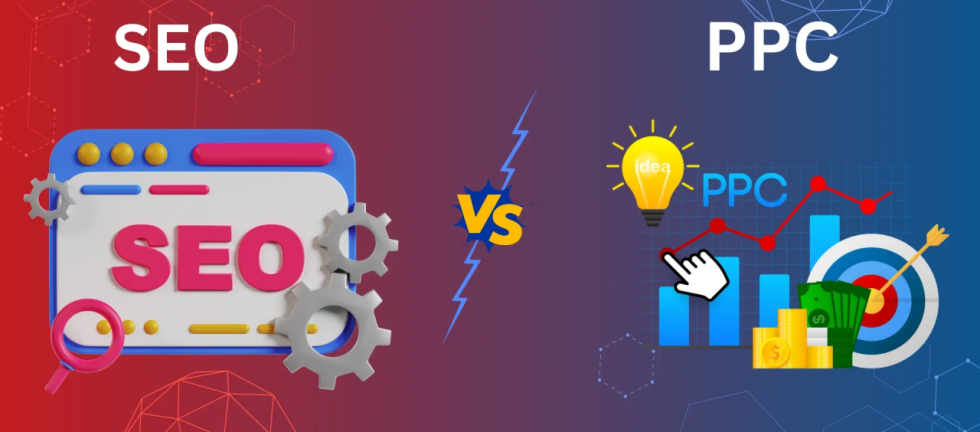
SEO and PPC are both extremely valuable digital marketing strategies. SEO is often less expensive and drives more powerful results over a long time, while PPC is perfect for driving results quickly and gives you more control over the outcome. If you have to choose one, SEO is the way to go. Ideally, though, your company will use both of these strategies together. Curious about the difference between SEO vs. PPC? Search engine optimization (SEO) is a digital marketing strategy that involves optimizing various elements of your website to rank higher in the organic search results while pay-per-click (PPC) is a digital advertising strategy that involves paying a fee to the search engine to display your website as one of the top results. When it comes to SEO vs. PPC, though, a lot of companies wonder which is better — SEO or PPC? If you’re asking the same question, you’re in the right place because this SEO versus PPC guide offers answers. On this page, we’ll cover the following: SEO vs. PPC: The core differences between SEO and PPC When looking at SEO vs. PPC, you have two differences to consider: Position and pricing. While PPC ads appear at the top of search results — above organic listings — you must pay for every ad click. In comparison, organic traffic from SEO is free, but your site appears below paid ads in search results. SEO vs. PPC: Your cheat sheet For a quick breakdown of SEO vs. PPC, check out this table: SEO vs. PPC Pros Cons SEO Free Delivers long-term benefits Drives relevant, targeted traffic Encourages a user-friendly website Faces ever-changing Google algorithms Requires ongoing maintenance Takes time PPC Offers maximum visibility in search results Delivers immediate results Offers complete control Provides flexibility Requires a constant investment Deters some users Costs add up Comes with a learning curve What is SEO? SEO is the process of getting traffic from the “free” or “natural” listings on search engines, such as Google or Bing. SEO is like a marathon, where it takes a lot of time to see the results of your hard work. Your website is modified or improved to help it appear higher in the organic listings. These listings or ranking positions are determined by factors such as the popularity of your links and the relevancy of your content, but changes definitely won’t happen overnight. All in all, there are roughly 200 SEO ranking factors that all influence how Google and other search engines rank your site in their search results. SEO pros The advantages of using SEO include: SEO is free When you use SEO, your site will have a great opportunity to reach new customers without you contributing any funds directly to an advertising budget. The result is essentially free targeted advertising. That means your customers actively search for you, as opposed to you searching for customers, and they can find you in search results on Google. Then, you can take a few hours each day (or week) to create new pages for your site that focus on keywords that are valuable to your business. So if you own a pizzeria, you’d want to target a keyword like “best pizza in [your city]” to attract new customers. The more pages that you create, the more chances you have of engaging and attracting new customers so your business can grow. SEO delivers long-term benefits Once all the SEO best practices are implemented — like creating quality, keyword-rich content, and a strong linking profile — the results will outlast your efforts. The return on investment for SEO will continue to climb long after PPC has peaked. That means your site will continue attracting customers indefinitely. SEO drives relevant, targeted traffic SEO allows for the use of long-tail keywords, which are three to five-word phrases that refine a search term to be more targeted. For example, someone who is searching for “wedding cakes” probably is just doing some casual browsing or looking for ideas. Someone who is searching for “wedding cake cost calculator” is someone who is further along in the buying process. With long-tail keywords comes more relevant traffic. SEO encourages a user-friendly website The main difference when it comes to SEO vs. PPC is that with PPC, you pay for the visitors, but with advanced SEO, you earn visitors by improving your site and following best practices. It may take a lot of work, but it’s a good thing in the long run because of the improvements to your site’s usability. SEO cons The disadvantages of using SEO include: SEO faces ever-changing Google algorithms A top complaint about SEO is that all of the work you put into your site to get your website on the first page results could be affected completely if Google releases new algorithm changes (which they do, at a rate of about 1.2 changes per day). SEO requires ongoing maintenance Keyword research, content updates, link building, and more are all factors of SEO that need to be regularly monitored and updated in order for your site to maintain rankings or to increase them. SEO takes time Compared to the instantaneous results of PPC, when you’re comparing SEO vs. PPC, the time lag with SEO can be a downfall. It can take anywhere from one to three months to see an increase in rankings or traffic. This also depends on how much optimization is needed for your site to even be ready to launch. Not to mention, if you don’t want to pay an agency to do it, you have to tackle everything yourself. That means months of work with little payoff. Even if you hire an agency, you’re still looking at a period of a few months before you see results. The amount of time it takes to rank well depends on the level of competition within your industry. What is PPC? PPC advertising allows you to display ads in the sponsored results section of each search engine’s results page, and when that ad is clicked, you are charged a
Read more

Social Media Marketing: Everything Explained for 2025

What is social media marketing? Social media marketing refers to the usage of social media platforms like Facebook, Instagram, X and LinkedIn where your target audience hangs out, to:  Build awareness about your brand  Promote your business  Establish your thought leadership  Drive sales and revenue  SMM is about connecting with your audience by creating and sharing content that resonates with them. Think of it as a way to reach out to your customers where they hang out online. You’re not just selling stuff; you’re building relationships, starting conversations and creating a brand community. By engaging with your community of followers, you get to understand what they like and need, which helps you tailor your messages and offers to them.  In short, social media marketing is more than just posting pretty pictures or catchy slogans. It’s about making meaningful connections that turn casual followers into loyal customers.   Types of social media marketing Social media marketing isn’t a one-size-fits-all deal. There are various ways you can use social media to promote your business. Here are some of the main types:  Content marketing: Sharing blogs, articles, videos and other valuable content to attract and engage your audience. It’s about providing useful information that your followers will appreciate. Advertising: Running ads on social media platforms like Facebook, Instagram and LinkedIn to reach a wider audience. These ads can be targeted based on demographics, interests and behaviors of your audience so they feel more like organic conversations than sales pitch.  Influencer marketing: Collaborating with influencers who have a large following to promote your products. They can create authentic content that resonates with their audience and builds trust in your brand.  Social media management: Regularly posting updates, responding to comments and messages and engaging with your followers to maintain a strong online presence.  Social media contests and giveaways: Running contests and giveaways to increase engagement and attract new followers. People love free stuff, and it’s a great way to get them to talk about your brand.  Live streaming: Using live video to interact with your audience in real time. Platforms like Facebook Live, Instagram Live and YouTube Live allow you to host Q&A sessions, product launches and behind-the-scenes looks.  User-generated content: Encouraging your customers to create content about your products and share it on social media. It’s like word-of-mouth marketing but digital.  Top social media marketing platforms Navigating the world of social media marketing means understanding the objectives, audiences and strengths of various platforms. Each one offers unique ways to engage with your audience. Here’s a closer look at the major players:  Facebook:  Audience: Broad diverse age range.  Content Types: Posts, videos, stories, events, ads.  Best For: Community building, customer engagement, targeted advertising.  Unique Features: Facebook Shops for e-commerce, Groups for niche communities, robust ad targeting options.  Instagram:  Audience: Younger demographic visually driven.  Content Types: Photos, videos, stories, reels, IGTV.  Best For: Visual storytelling, brand aesthetics, influencer collaborations.  Unique Features: Shoppable posts, Instagram Stories for behind-the-scenes content, IGTV for longer videos, Reels for short engaging clips.  X:  Audience: Broad but skewing towards news and real-time updates.  Content Types: Short text posts, images, videos, threads.  Best For: Real-time updates, customer service, trending topics.  Unique Features: Retweets for community engagement, trending hashtags to join popular conversations.  LinkedIn:  Audience: Professionals B2B market.  Content Types: Articles, posts, job listings, company updates.  Best For: Networking, thought leadership, B2B marketing.  Unique Features: LinkedIn Pulse for publishing articles, LinkedIn Ads for targeted professional campaigns, LinkedIn Learning for educational content.  Pinterest:  Audience: Predominantly female interest-driven.  Content Types: Pins (images and infographics), videos.  Best For: Visual content, driving website traffic, DIY and lifestyle brands.  Unique Features: Rich Pins for additional context, Shopping Pins for e-commerce, Pinterest Boards for organizing ideas.  YouTube:  Audience: Broad diverse age range.  Content Types: Videos (tutorials, vlogs, reviews).  Best For: Video content, brand storytelling, educational content.  Unique Features: YouTube Live for live streaming, YouTube Shorts for short videos, monetization options through ads and sponsorships.  TikTok:  Audience: Younger demographic highly engaged.  Content Types: Short creative videos.  Best For: Viral content, trends, brand challenges.  Unique Features: Duets for collaborative content, TikTok Ads for targeted marketing, trending hashtags for discoverability.  Snapchat:  Audience: Younger users mobile-first.  Content Types: Short videos, images, stories.  Best For: Real-time engagement, behind-the-scenes content.  Unique Features: Snap Map for location-based engagement, AR lenses for interactive experiences, Discover for branded content.  Using these platforms strategically means playing to their strengths and understanding where your audience spends their time. By tailoring your content to fit the unique features of each platform you can appeal to the algorithms on each platform, maximizing your reach and engagement. Why brands should adopt a social media marketing strategy With a solid social media marketing strategy, you can reap rich dividends in the form of:  1. Reach a wider audience  Social media platforms like Facebook, Instagram, and X have billions of active users. By establishing a presence on these platforms, you can reach a vast and diverse audience that you wouldn’t be able to access through traditional marketing methods. Imagine being able to connect with potential customers from different parts of the world, all from the comfort of your home or office.  ➕ Benefit: Expands your brand’s visibility and potential customer base, helping you grow your business more quickly.   2. Engage with your customers  Social media provides a direct line of messaging between you and your audience. You can respond to comments, answer questions and engage in real-time conversations. This interaction builds a sense of community and trust, making customers feel valued and heard. For instance, a quick response to a customer’s query on Twitter can turn a dissatisfied customer into a loyal advocate.   ➕ Benefit: Strengthens customer relationships and increases brand loyalty, which can lead to repeat business and referrals.   3. Cost-effective marketing  Social media marketing is one of the most cost-effective promotional strategies out there. Creating a profile on most platforms is free, and even paid advertising options are relatively affordable compared to traditional advertising methods. You can run targeted ads on a budget, reaching the right audience without spending a fortune.  ➕ Benefit: Allows small businesses and startups to compete with larger companies without breaking the bank.   💡 Pro tip: Start with a small budget for paid ads, test different ad formats and audiences, and scale up based on what works best.  4. Increase website traffic  By sharing your content and promoting
Read more

Digital Media Booster’s Digital Marketing Agency Services and Infrastructure for Doctors, Clinics, and Hospital

Digital media booster is a digital advertising agency that promotes Doctors, Clinics, and Hospitals through digital marketing. Along with this also provides digital infrastructure to healthcare professionals, clinics, and hospitals for telemedicine services and digital marketing. Digital media booster is the only Digital Marketing Agency in Pakistan that creates effective digital marketing strategies for Doctors, Clinics, and Hospitals to generate leads, grow patients and practice, and increase revenue. The ultimate goal of any marketing activity is to maximize business exposure and customer conversion, and the same is true for digital marketing. And such a goal can’t be achieved by just displaying Ads on a Digital Media Platform. It requires a strategic effort that includes business understanding, market research, research about products, services, and expected customers, marketing content design, selection of digital platform for advertisement, marketing budget distribution, and remarketing plan. A set of these activities is known as a digital marketing strategy. Digital media booster are experts in designing comprehensive and effective digital marketing strategies for healthcare professionals and businesses on all Digital Media Platforms including. 1.   Facebook 2.   YouTube 3.   Instagram 4.   Google 5.   WhatsApp 6.   TikTok 7.   Twitter 8.   LinkedIn 9.   SMS Marketing 10. Email Marketing Digital Media Booster provides the following Digital marketing services to their clients. 1)   Marketing Contents Designing and Creation The outcome of any advertisement campaign depends upon its marketing content. Most of the digital campaigns of healthcare businesses fail due to their marketing content. There are two reasons for such failures. One is that they violate the advertising policies of the country in which they are running ads or of the selected digital media platforms. Because most countries and digital media platforms do not allow direct advertisement of health-related content. You have to design such content to avoid such restrictions. Our team is an expert in designing such marketing content for health professionals and startups that would not come under these restrictions. The second reason is that most digital marketers consider healthcare business customers as a buyer and they design their marketing content as they are engaging their audience for buying something. The psychology of a buyer is very different from that of a person who is worried about his health and is looking for information to make a healthcare decision. As a marketer, you will have to motivate a buyer to buy your product or service, While a person looking for information about their health you should educate or guide him about his health condition so that he can book your appointment. For marketing a Doctor, Clinic, and Hospital you should design informative and educative content. Digital media booster marketing team helps you in designing such content. 2)   Audience Identification The good thing with digital marketing is that it gives you control over the ad and who can watch it and who can’t, so by targeting the most relevant audience, you can maximize conversion. But in the case of health-related content, most of the digital marketing platforms like Google ads and Facebook did not allow direct marketing of Doctors, Clinics, Medicines, and health-related products which makes it a challenging task for marketers. That makes audience identification difficult for marketing Doctors, Clinics, and Hospitals through built-in audience filtration systems of digital media platforms. However, targeted audiences are crucial for running successful campaigns on digital media. So, Digital media booster team on the back end maintains a data bank of internet users. By applying Behavioral informatics techniques to the collected data our team can easily predict the interests and behavior of internet users. So, targeting users who have an interest in infertility-related content, products, and websites will maximize the conversion rate for infertility doctors. 3)   Digital Marketing Strategy Planning and Execution Digital marketing is more strategic than conventional marketing. It requires a well-designed strategy with clear objectives and an execution plan. Digital media booster plans and executes digital marketing strategies for doctors’ clinics and hospitals which involves tailoring online marketing efforts to the unique needs of healthcare providers. It includes setting goals like patient acquisition and engagement, crafting content that educates patients and highlights expertise and patient success stories, leveraging SEO to enhance online visibility, utilizing social media for patient education and engagement, implementing targeted email marketing campaigns, and ensuring compliance with healthcare regulations. The objective is to establish trust, educate patients, and efficiently connect healthcare providers with those seeking medical services in a digital age. 4)   Leads Generation and Conversion Lead generation and conversion through a digital marketing strategy designed by Digital media booster for doctors, clinics, and hospitals focuses on using online strategies to attract potential patients, nurture their interest, and ultimately convert them into actual patients. Digital media booster does this by creating targeted content that addresses healthcare concerns, optimizing online presence for search engines, running targeted social media and pay-per-click advertising campaigns, and employing email marketing to engage with leads. Our marketing team on the backend professionally communicates with the engaged patients to establish credibility, build trust, and provide valuable information to potential patients, ultimately guiding them to choose the healthcare services offered by the clinic or hospital. Effective tracking and analysis of digital marketing efforts play a vital role in optimizing lead generation and conversion strategies in the healthcare sector. That is why Digital media booster does weekly and monthly audits of all the digital strategies to get better results. 5)   Audience Tracking and Remarketing Audience Tracking and Remarketing by Digital media booster Digital Advertising Agency is a strategic approach that empowers doctors and healthcare providers to reach and engage their target audience effectively. Through meticulous tracking of online user behavior, we create tailored audiences and deliver personalized messages to potential patients through email, SMS, and WhatsApp marketing. The data shows that 60% of the visitors do not convert into loyal patients for the first time. So, the Digital media booster marketing team track your online profile visitor on different digital media including social media like Facebook, Twitter, and YouTube. And target them in the remarketing strategy for effective results. This data-driven method ensures that doctors stay top-of-mind, boosting patient conversions and building
Read more

Benefits of Doctor SEO Services

Working with an SEO team that specializes in search engine optimization is one of the best ways to generate more web traffic and foot traffic to your practice. With SEO, you can achieve long-term benefits at an affordable price point. Rank for Local Searches for Doctors Our SEO company will identify the relevant keywords that your target audience is using to search for doctors in their area. Then, we do a combination of services, from link building to content creation to local SEO, securing higher ranking positions in the Google Map Pack. This can lead to more phone calls to your office and more chances to convert those visitors into patients. We find and target the keywords that are going to help you generate revenue the fastest. Drive Website Traffic for Years to Come Google Ads can get very expensive in the healthcare industry, meaning high costs for practices who want to earn new clients. But ranking organically in local search can help you earn website traffic for the long term and at a more budget-friendly price point. SEO is one of the most powerful tools to help local providers like doctors and healthcare professionals grow their practices. What’s Included in our Search Engine Optimization Services? Our experts take a strategic approach to healthcare SEO. We combine multiple SEO services to deliver the best results in search engine performance.
Read more

Real Estate Ads Online Remarketing

After someone has visited your website and spent time on a certain property page you are now able to serve that person ads containing images and details of the exact property they viewed. You can retarget them on Facebook as well as Google partner sites. This is a great new client acquisition method as the person is most likely in-market to buy, rent or sell. If someone is deciding on a few properties, having your ad constantly following them could bring them back to finally convert. This is a proven method and often brings a very high conversion rate. The Digital Media Booster platform offers the following full-service solutions for real estate marketing:   Website Scraping (Extracting the data from any website) Dynamic Google Ads (Highly relevant ad copy) Remarketing on Facebook and Google (Bring your visitors back to increase chance of closing sale)
Read more

SMTP Hosting Explained: The Backbone of Transactional and Bulk Emails

For businesses that rely on high-volume email communications, whether for customer notifications or marketing campaigns, email deliverability is crucial. While traditional email hosting handles standard, lower-volume communications, SMTP hosting is designed specifically for large-scale, reliable delivery of emails. Here’s a look at what SMTP hosting is, why it’s essential for transactional and bulk emails, What is SMTP Hosting? SMTP (Simple Mail Transfer Protocol) is the protocol responsible for sending emails over the internet. SMTP hosting provides dedicated infrastructure that enables businesses to send large volumes of emails with high reliability and optimized deliverability. Unlike regular email services, which may be limited in terms of volume or speed, SMTP hosting is built for scale, helping businesses meet their email needs without running into bottlenecks. Types of Emails Supported by SMTP Hosting SMTP hosting can support various types of email traffic, including: Benefits of SMTP Hosting for High-Volume Senders For businesses that depend on high email volumes, SMTP hosting provides key advantages: Common Challenges Solved by SMTP Hosting Without a dedicated SMTP host, businesses face several challenges: Case Study: Digital Media Booster SMTP Hosting Digital Media Booster ’s SMTP Hosting, originally branded as MxGrid, exemplifies a dedicated solution for transactional and bulk email needs. With features like flexible plans, dedicated IP addresses, and focused support, Digital Media Booster service helps businesses achieve reliable deliverability while supporting high-volume demands. Customers benefit from deliverability guidance, a scalable infrastructure, and control over their sending environments. One client, for example, needed a solution to send critical notifications reliably, avoiding ISP throttling and IP reputation issues that had hindered previous campaigns. By switching to Digital Media Booster SMTP Hosting, the client saw improved email speed, lower bounce rates, and a stronger sending reputation. Choosing an SMTP Host: Key Considerations When selecting an SMTP hosting provider, businesses should consider: Conclusion For businesses that rely on timely, large-scale email communications, SMTP hosting is essential. It offers the tools, infrastructure, and support necessary to ensure that emails reach recipients quickly and reliably. Digital Media Booster SMTP Hosting service provides a case study in reliability and expertise, helping companies meet the demands of high-volume sending while preserving their email reputation. It’s also important to note that while SMTP hosting is critical for bulk and transactional email sending, it doesn’t replace the need for a dedicated email hosting service. SMTP hosting is designed specifically to handle the delivery of high-volume or triggered emails, while a standard email hosting service supports everyday email functions like receiving, storing, and organizing messages. Together, an SMTP service and an email hosting service create a complete solution, allowing businesses to manage both regular and high-volume email needs efficiently. Get Best Transactional Bulk eMail Marketing Service in Pakistan
Read more

The Importance of Email Marketing for Small Business

If a business wants to communicate with a customer, the best way to do it is through email. According to Hubspot, 86% of consumers would like to receive promotional emails from companies they do business with at least monthly (with 15% preferring daily emails). Emails are the quickest way to announce a sale, share company news, or remarket to previous customers. Recent research found that email marketing is popular across generations, enabling businesses to reach broad audiences effectively and inexpensively.  What is Email Marketing? Simply put, email marketing refers to the use of email communications in a marketing strategy to reach specific business goals. Emails can be used to generate sales, enhance customer engagement (i.e., newsletters), acquire customers, create brand awareness and reward customer loyalty. For existing clients and customers, email marketing emphasizes communication and awareness. For potential customers, emails can be used to entice and attract in an outreach campaign. The most effective email marketing campaign is planned by modality, audience, and goals. Campaigns to onboard new customers, reengage inactive customers, or drive customers from lead to conversion all have unique goals and approaches.  Types of Email Marketing Campaigns Newsletters Newsletters are effective for keeping your customers tuned into your brand. They typically contain an intro, description, and links with images informing customers regarding new products or services, industry news, important announcements, or any changes in your business that you wish to convey. Welcome Messages These emails are typically sent out to first-time clients after online registration but are also used for sales generation, lead follow up, or brand awareness. A welcome message usually works best when combined with a special offer to further generate customer interest or action. Anniversary or Birthday Messages This campaign boosts customer retention and loyalty. This type of email highlights milestones important to the brand or the customer and is usually accompanied by a special promo or discount code that they can use. Limited Time Offers This email campaign is used to target customers in sales, especially those who have purchased similar items or those who have not completed their purchase. These emails also come with promotional codes or discounts that expire within a certain timeframe. Abandoned Cart Emails Again, for those involved in e-commerce, sending an email about an abandoned cart can encourage customers to complete their purchases. These emails can be automated messages that ask the customer to complete their purchase within a specific timeframe. The Benefits of Email Marketing Build up customer enthusiasm Email marketing is very effective in generating customer interest. When done right, a newsletter is cost-effective, fast, and simple way to keep customers informed on (and excited about) new product launches or new promotions. Enhance customer loyalty Email marketing allows you to regularly stay in touch with customers and website visitors. Proven buyers also appreciate being kept up-to-date with the latest products and promos. Studies show it costs five times more to acquire a new customer compared to retaining an existing customer. Better customer outreach Email marketing has greater chances of being seen, compared to social media updates where they can miss out announcements and just scroll up their news feeds. With a few clicks, emails can be sent to thousands of users. Those users are free to read at their own convenience- whether online or offline. Easy to maintain and inexpensive As mentioned earlier, email marketing is cost-effective and is relatively easier and cheaper to maintain. Email marketing services such as MailChimp or ActiveCampaign have simplified the process, allowing for greater automation and customization. Email Marketing Strategies While email marketing is simple to launch and administer, developing a goal-centered strategy creates results.  Define KPIs Define your KPIs. What is your clickthrough rate, the percentage of recipients who clicked on a link in your email? Or the conversion rate, the percentage of recipients who proceeded to purchase a product or complete a form requesting more information? Your open rate? Even the unsubscribe rate and the list growth rate provide insights into your email effectiveness. Segment Audiences Different subscribers and customers need approaches designed for their unique needs. Segmenting your email marketing by recipient type at a minimum. Likely customers, new customers, and ongoing customers all need a different message and touch.  Beyond segmentation, message personalization increases relevance, driving mail opens and engagement with your brand.  Use Your CRM An integrated CRM can manage contacts, distribution lists, and campaigns, making it easier to segment, personalize, and measure.  if you have an existing Marketing Automation system, or even a CRM with automation features, use the email marketing engine to automate your initiatives.  Expanding Your Content Marketing Strategy Regardless of a business’s size and industry, emails can present a number of business opportunities from lead generation to customer engagement. Of course, email marketing is flexible and scalable enough to achieve complex marketing goals depending on your needs, your infrastructure, and the organization’s capability.  Often a first step in a marketing mix, email marketing allows brands to begin to grow capability as its technology and organizational maturity continue to evolve. To see how to grow your marketing impact, read our Data Science Maturity Model resource. Regardless of a business’s marketing experience, multiple best practices can be applied to any level to expand your capabilities. For more information on all things related to email marketing and SEO. Get More Info : Email Sending Service in Pakistan
Read more

Why Digital Marketing is Important for Business Success in 2025

Why Digital Marketing is Important for Business Growth In today’s rapidly changing digital environment, businesses must adapt to stay competitive and reach their target audience effectively. Digital marketing has emerged as a game-changer, offering a multitude of strategies and channels to connect with customers, drive growth, and achieve measurable results. With the decline of traditional marketing’s effectiveness and the rise of internet users worldwide, digital marketing has become an indispensable tool for businesses of all sizes.  By leveraging online platforms such as social media, search engines, and email, companies can reach a vast potential customer base, target specific demographics, and deliver personalized messaging that resonates with their audience. One of the most significant advantages of digital marketing is its cost-effectiveness and flexibility in budget allocation.  Unlike traditional methods that often require substantial upfront investments, digital marketing allows businesses to start small and scale their efforts as they grow, making it an attractive option for startups and small businesses looking to maximize their return on investment. Digital marketing offers real-time data and analytics, allowing businesses to track the performance of their campaigns, measure key metrics like website traffic, engagement, and conversions, and use this information to continuously refine their strategies.  This level of transparency and accountability is unmatched by traditional marketing methods, empowering businesses to refine their approach and allocate resources more effectively. As the digital advertising and marketing market continues to grow, with projections reaching $786.2 billion by 2026, businesses that embrace digital marketing will be well-positioned to capitalize on the opportunities presented by this ever-evolving field.  By developing a strong online presence, creating valuable content, and engaging with their target audience across various digital channels, businesses can build brand awareness, foster customer loyalty, and ultimately drive sales and revenue growth. In the following sections, we will explore the various aspects of online marketing, examining how businesses can utilize its power to even the playing field, connect with their internet-based customer base, measure success, and cultivate a robust brand identity. The Power Of Digital Marketing For Businesses Picture this: you’re a business owner in today’s fast-paced, digital-driven world. You’ve been relying on traditional marketing methods, but you can’t help but notice that they’re just not cutting it anymore. The Shift From Traditional To Digital Marketing The marketing scene has undergone a dramatic transformation in recent years, with digital marketing taking the lead. Two key factors have contributed to this shift: the explosive growth of internet users worldwide and the declining effectiveness of traditional marketing tactics. The Rise Of Internet Users Worldwide Over the past decade, the number of internet users has surged to a staggering 5.16 billion people. This vast online audience presents an incredible opportunity for businesses to expand their reach and connect with customers on a global scale. The Decline Of Traditional Marketing Effectiveness In today’s world, traditional marketing methods like print ads, TV commercials, and billboards are not as effective as they once were. As consumers increasingly turn to online platforms for information and purchasing decisions, businesses must adapt their marketing strategies to stay relevant. Why Digital Marketing is Important in Today’s Business Landscape Digital marketing has become increasingly crucial in today’s rapidly evolving business environment, where consumer behavior and technology continue to reshape how companies connect with their audiences. The digital transformation accelerated by recent global events has made online presence not just an advantage, but a fundamental necessity for business survival and growth. Companies that embrace digital marketing strategies are better positioned to adapt to changing market conditions and meet customers where they spend most of their time – online. The importance of digital marketing in today’s business landscape stems from several key factors. First, the dramatic shift in consumer behavior towards online channels has made digital presence essential for reaching and engaging potential customers. Second, the increasing sophistication of digital tools and platforms enables businesses to deliver more personalized and effective marketing campaigns. Third, the ability to measure and optimize marketing efforts in real-time provides unprecedented opportunities for improving ROI and business outcomes. Furthermore, the democratization of digital marketing tools has leveled the playing field, allowing businesses of all sizes to compete effectively in their respective markets. Small businesses can now reach global audiences with targeted messaging and compete with larger corporations through strategic digital marketing initiatives. This accessibility has transformed how businesses approach market expansion and customer acquisition. The Evolution of Digital Marketing Importance The significance of digital marketing has evolved significantly over the past decade, with several key developments shaping its current importance. The proliferation of mobile devices, the rise of social media platforms, and the advancement of marketing technology have created new opportunities for businesses to connect with their target audiences. This evolution continues to accelerate, making digital marketing more crucial than ever for business success. Modern consumers expect seamless digital experiences across all touchpoints, from initial discovery to post-purchase support. Businesses that fail to meet these expectations risk losing market share to more digitally savvy competitors. The ability to provide these experiences through digital marketing has become a critical differentiator in today’s competitive landscape. The Advantages Of Digital Marketing Over Traditional Methods Digital marketing offers a range of advantages that make it a compelling choice for businesses of all sizes. From cost-effectiveness and flexible budget allocation to precise targeting and real-time optimization, digital marketing has the edge over traditional methods. Cost-Effectiveness And Flexibility In Budget Allocation One of the most significant advantages of digital marketing is its cost-effectiveness compared to traditional marketing. With digital marketing, businesses can allocate their budgets more flexibly, adjusting spending based on campaign performance and the most effective channels. Ability To Target Specific Demographics And Audiences Digital marketing allows businesses to target specific demographics and audiences with unparalleled precision. By leveraging data-driven insights and advanced targeting options, companies can deliver the right message to the right people at the right time, boosting conversion rates and customer engagement. Real-Time Measurement And Optimization Of Campaigns Unlike traditional marketing, digital marketing enables real-time measurement and optimization of campaigns.
Read more

The Importance of SEO for Your Business

SEO: three simple letters that hold the key to online success. You might know that search engine optimization (SEO) is important and has something to do with search engines. But what is SEO, and why does it matter? This article is your primer on all things SEO and its potential impact on your business. If you’re ready to start honing your SEO knowledge without getting lost in the tech jargon, buckle up! We’ll explain SEO’s ins and outs, help you tap into its potential, and help your business shine online. A Short Overview of SEO SEO stands for search engine optimization, meaning optimizing your website content and technical setup so that Google (plus other search engines) can crawl, index, and understand your content to rank your web pages higher in search results. This digital marketing strategy will help you increase your site’s visibility and likely more organic search traffic. If a potential customer or client searches for a topic relevant to your products or services, you want to be on the top of that search engine results page (SERP) alongside your competitors. If you aren’t, another business may have just gained a new customer—or you lost one. SEO allows you to lead the customer through your buying process. In addition to visibility and increased website traffic, SEO contributes to your company’s authoritative voice in your industry. And that authority builds brand trust, which ultimately becomes brand loyalty. Why Is SEO So Important for Your Business? SEO is one of the most powerful digital marketing strategies you can deploy to improve sales, build credibility, increase brand awareness, and gain a leg up on your competitors. A solid SEO foundation not only attracts new customers but also lets you deepen your business’s relationship with those customers because of the trust you establish with them. How SEO Works SEO is about both quality and quantity. Search engines want to provide the most relevant, high-quality results to searchers, so websites need substantive, helpful content and technical optimization to rank well. A solid SEO strategy typically includes these elements: Let’s look at how each of these strengthens your digital marketing efforts. Keyword Analysis Every SEO strategy starts with research. More specifically, you need to understand the words your audience will use on a search engine when researching products, services, or topics relevant to your business. At the most basic level, keywords have varying difficulty levels and search volume. For example, consider the keyword “biotech.” As a broad term, ranking on Google is quite difficult. Here is what Semrush tells us about this keyword: It has a 88% difficulty level, which means it’s “The hardest keyword to compete for, and it will take a lot of on-page SEO, link building, and content promotion efforts.” Does that mean a company should give up trying to rank for that keyword? Not exactly. In keyword research, you’re also looking for long-tail keywords with a high enough monthly search volume and more reasonable keyword difficulty. Long-tail keywords are phrases or several words rather than a single word. For example, you could instead target a keyword like “biotech startup.” Now, the keyword difficulty is 42%, which is “a competitive keyword to rank for, and you will need well-structured and unique content.” It also still has a 720 monthly search volume, which refers to the number of times a specific keyword or phrase is queried in a search engine monthly. This type of strategy works for all businesses and niches looking to improve their SEO, from law firms to e-commerce. And it’s not just finding the right keywords; it’s also placing them in the right places in your content. If your content contains those words and phrases used by customers, you will increase your visibility by providing helpful answers using the right language. Backlink Building Backlinks refer to when other websites link to your website. Historically, there were some practices we now call “black hat SEO” where companies bought backlinks from hundreds or thousands of websites that they or a vendor built for the specific purpose of backlinking. Buying backlinks is a direct violation of Google’s guidelines because it’s considered link spam. That strategy will get you some hefty penalties if you try it now. Also, you want backlinks from high-quality, highly relevant websites to get the SEO benefit. Essentially, when someone links to your site, this link helps tell Google and other search engines that you’re an authority on the topic. So, how do you capture some of these elusive backlinks? You must create excellent and high-value content that people will organically backlink to you. We know, easier said than done, but if you want true results, you have to put in the work. You can also supplement your backlink strategy by hitting the digital pavement and building strategic partnerships. Content Creation Content is the heartbeat of your website’s SEO strategy. Without helpful content, search engines have nothing to rank. Content is anything your audience reads, watches, or listens to, including: You should always strive to publish helpful, robust content that directly answers your audience’s questions. Technical SEO Technical SEO refers to a website’s behind-the-scenes technical elements that allow search engines like Google to crawl efficiently, index, and understand its content. Optimizing these technical factors is crucial for ranking well organically. Some critical technical SEO factors include site architecture, website speed, mobile optimization, proper markup implementation, effective URL structures, use of alt text and headings, meta-data, and overall semantic HTML code. Together, these elements help communicate relevancy and topic focus to search engines. They also impact how quickly and easily Googlebot can crawl each page. Ensuring your website follows Google’s technical best practices and troubleshooting any crawling or indexing issues enables Google to read your pages—and better understand their content. With this solid technical base, your other SEO efforts, like keyword research, link building, and content creation, will become even more effective at driving organic rankings and traffic. One significant development in technical SEO is the emergence of mobile-first indexing. This approach means Google primarily uses content’s
Read more